Showing posts with label Bluetooth. Show all posts

Thursday, 9 February 2012

How to Set Up Windows 7 for Bluetooth


Choose Start→Devices and Printers and look for a Bluetooth device.

The Device Stage will show all the devices that are connected to your computer. You might have to physically connect your device to the computer at this point just to set it up.
2

Right-click the Bluetooth device and choose Bluetooth Settings.

Windows shows you the settings.
3

Select the check box that says Allow Bluetooth Devices to Find This Computer, and then click OK.

This step turns on the Bluetooth transmitter, which beams out a welcoming signal to every Bluetooth device in the area — generally 30 to 50 feet (10 to 20 meters) away.
4

Make sure that Bluetooth is working on the device you want to connect.

This can be the tricky part, and each device uses slightly different settings to get you to the same place. You might find the Bluetooth settings in a variety of places. Once you find the link, click it and turn the Bluetooth On. It will most likely do a quick search of the area looking for available Bluetooth signals.
5

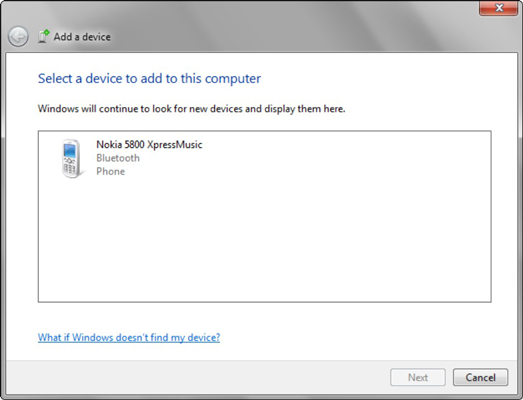
Back in Device Stage, in the upper-left corner, click Add a Device.

If you enabled Bluetooth correctly on both your PC and the device, they should — should — start the handshakestage.
6

Double-click the phone (or headset or speaker or whatever).

Your phone (or other device) is now ready to connect.
7

Wait for windows to create a connection code, if one is necessary.

If your device requires authentication — and all phones do — Windows 7 generates a random connection code and shows it to you.
8

At this point, enter the connection code into your phone or other device (if necessary).

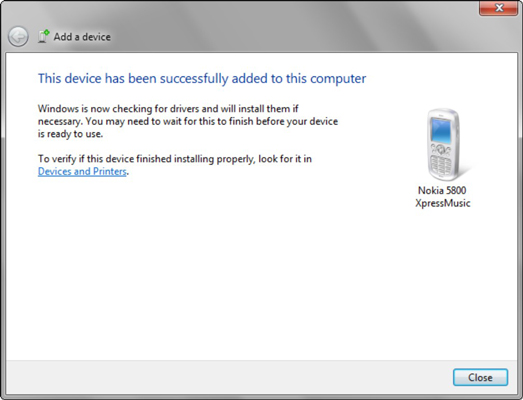
Windows advises that it has made the connection — but you have to wait for the drivers to download. You'll see the connection screen while you wait.
Be sure to keep your device turned on and within shouting range of your PC while the drivers are installed. For the process to work successfully, you'll need to be connected to the Internet, and you have to have Automatic Update turned on.
9

Leave everything going and return to the Device Stage by choosing Start→Devices and Printers. Wait until the new device appears without any swirlyicons or yellow “warning” icons.

At that point, you can use the device — but you still aren’t done yet.
10

Right-click the Bluetooth device and choose Bluetooth Settings. Deselect the check box labeled Allow Bluetooth Devices to Find This Computer, and then click OK.

Setup Internet Connection via Bluetooth using Nokia 6300 on Mac OS X


Setup Internet Connection via Bluetooth using Nokia 6300 on Mac OS X

Nokia 6300Here is a brief introduction on how to setup a GPRS internet connection on the Nokia 6300 via bluetooth (or another nokia phone for the matter).
Follow the steps bellow, and it might just work out for you.
  1. First of all you must have a working GPRS configuration on the phone from your network operator. My danish operator allows me to order the configuration for the Nokia 6300 from their website, then it is sent directly to the phone, where it is saved.
  2. Enable bluetooth on the phone.
  3. Open Bluetooth Setup Assistant on your Mac.
  4. Press Continue.
  5. Choose Mobile phone and press Continue.
  6. When your Mac has found your phone, choose it and press Continue.
  7. When your Mac has gathered information about your device press Continue.
  8. [ad code=1 align=left]
  9. To allow bluetooth connection, you are given a random passkey to enter on the phone to accept the connection between the computer and the phone.
  10. Check the Access the internet with your phone’s data connection option and chooseUse direct, higher speed connection to reach your Internet service Provider (GPRS, 1xRTT), and press Continue.
  11. For my phone network operator I do not need to fill ind the username and password, but the field GPRS CID String must be given a value according to GPRS configuration on the phone, I used *99***1#, as Modem Script the standard Nokia Infrared works.
  12. Now the setup is finished, and it should be possible to connect to the internet through the phone.
  13. Click on the bluetooth icon in the menu bar, and select Join Network on your-phone, and you should be happy surfing through a very slow internet connection.

How to share Internet connection between Windows XP and mobile phone


This thing will be solved by 2 parts. The first part will be setting up your Windows PC (setting up call your access point) and the second part will be setting up your HTC mobile phone.

Part 1: Setting Up Your Access Point:
  1. Go to Start -> Settings -> Network Connections.
  2. Right click on your internet connection (This is generally the single ethernet device here if you have a broadband connection and it is generally named Local Area connection.) and select Properties.
  3. Click on the Advanced tab.
  4. Mark the "Allow other network users to connect through this computer's Internet connection" checkbox in the Internet Connection Sharinggroup. Uncheck the "Allow other network users to control or disable the shared Internet connection" checkbox if you have a standard monthly fee (If you have a non-broadband connection and you want to disconnect from the net while not browsing, keep this box checked.)
  5. After clicking OK, your Windows XP will prompt you that it will set up your other currently not connected bluetooth ethernet device to have 192.168.0.1 IP Address and 255.255.255.0 Subnet Mask which is okay for your Bluetooth Network unless your broadband modem is using the same IP pool: 192.168.0.x.
Part 2: Setting Up Your HTC mobile phone:
  1. Go to Start -> Settings -> Conections > Network Cards.
  2. Tap the adapter named Bluetooth PAN User Driver. You will now see IP Address tab selected in the Settings.
  3. Select Use server-assigned IP Address.
  4. Tap the Name Servers tab. Either blank all the fields (preferred) or input your service provider's DNS IP Addresses here.
  5. Click OK three times (but don't tap the X).
  6. Tap the Bluetooth icon and tap the link saying Bluetooth Manager.
  7. Tap the starred Bluetooth icon.
  8. Tap the Join a personal network.
  9. Select Join a personal network option and tap Next.
  10. After your Connection Wizard sees your computer, select it and select Finish so that your HTC mobile phone creates a shortcut for this connection named Network with '?YourComputersName'. Please note that there is no need for a secure/encrypted connection.
  11. Double tap or hold and select Connect to the Network with '?YourComputersName' to make a connection with your access point.
  12. At this point or later, your HTC mobile phone will ask you if this connection is a Work or Internet connection. You may chose it as your Work connection.
Launch the Internet Explorer, Opera or Skyfire on your HTC mobile phone, open your favourite website or MSN Messenger, or Skype, or any other Internet application. If everything worked well, you will be connected to the net over Bluetooth via your PC.

Set up a Bluetooth enabled device

To set up a Bluetooth enabled device, you need to do three things:
  1. Add a Bluetooth adapter to your computer.
    This is usually done by plugging the adapter into a USB port. (If a Bluetooth adapter is already built in or attached to your computer, ignore this step.)
  2. Set up the device so that your computer can find it.
    To do this, you must:
    • Turn the device on.
    • Make it discoverable.
    To learn how to make a device discoverable, check the information that came with your device or go to the manufacturer’s website.
  3. Install the device.
    To install most devices, such as a mobile phone, keyboard, mouse, or personal digital assistant (PDA), you can use Bluetooth Devices in Control Panel. If you have Bluetooth wireless technology installed on your computer, follow these steps:

    To install a Bluetooth enabled device

    1. Click the Start button Picture of the Start button, click Control Panel, click Hardware and Sound, and then click Bluetooth Devices.
    2. Click Add, and then follow the instructions.

    To install a Bluetooth enabled printer

    • Open the Add Printer wizard by clicking the Start button Picture of the Start button, clickingControl Panel, clicking Hardware and Sound, clicking Printers, and then clicking Add a printer.